Part 9 of 33
Inside a lesson
Every math lesson is built the same way, so once your child knows one they know all of them. Here is what is in one, from top to bottom. Science and reading lessons are picture books instead, and they are explained at the end of this chapter.

The top of the lesson
The colored band at the top names the subject, the course and the chapter, then the lesson title and one line saying what your child will learn. Under that is the lesson number and about how long it takes, and the printable sheets for this lesson. See Worksheets and printing. The Listen button reads the title aloud.
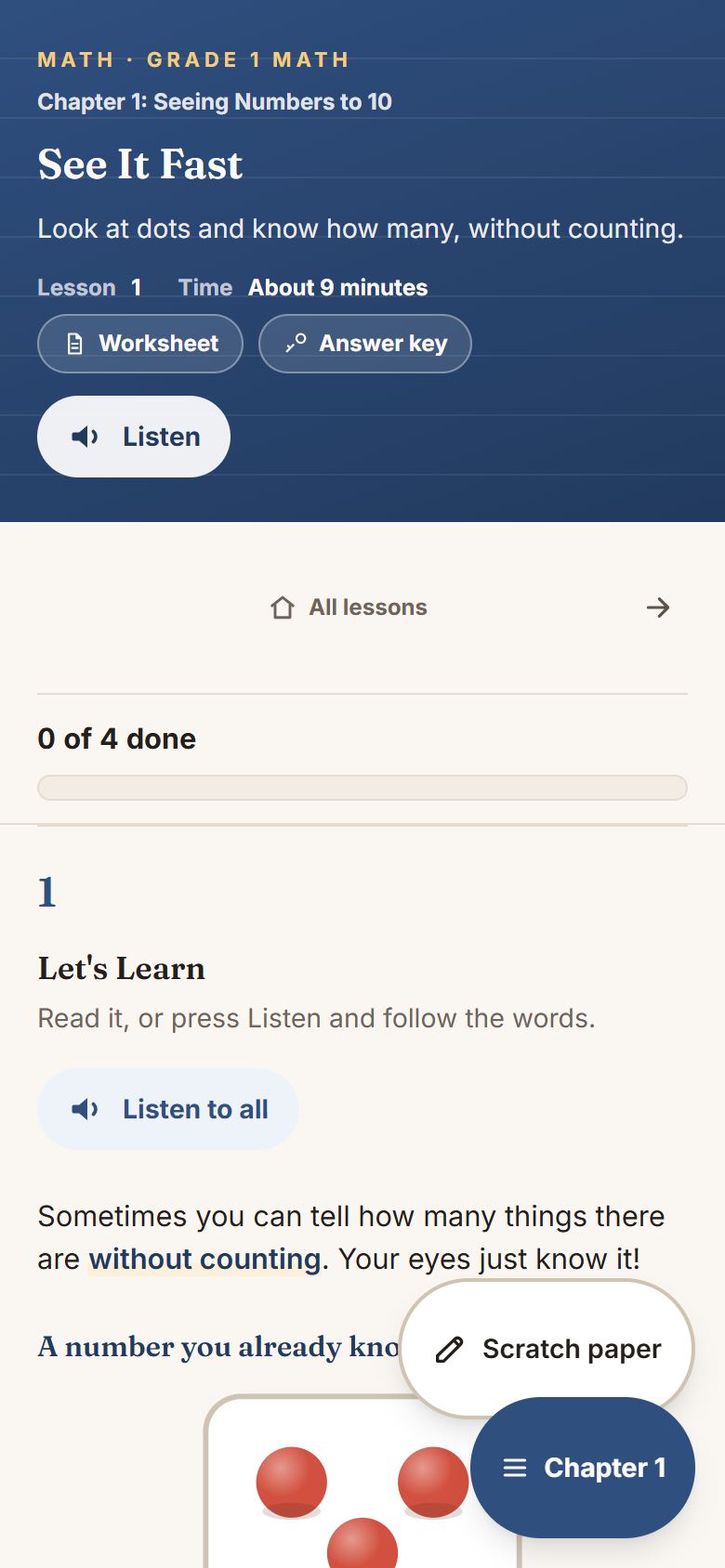
Just below the band is a row of links: All courses, then the course, then the chapter. Under that are arrows to the previous and next lessons.
The bar that follows you
A bar stays at the top of the screen as you scroll. It says how much is done, such as 3 of 9 done, and which part you are in, such as Part 2 of 6 · Try It Yourself.
At its right end is One part at a time. Tap it and the lesson shows one part on its own, with Back and a Next button that names the next part. Tap Whole lesson to go back. The choice is kept for the device. It helps a child who scrolls past everything to reach the end.
The parts of a math lesson
Each part has a numbered heading. A lesson without one of these parts simply skips it, and the numbers do not jump.
- Picture It. On some lessons, first of all: the idea in something your child already knows, before any symbols. A limit is someone walking toward a wall; a ratio is a bead bracelet. It appears only where it really helps, so most lessons for the youngest children, which already teach with objects, do not have one. It is not counted toward finishing.
- Let’s Learn. From Grade 3, many lessons open with Try it first: one problem before the rule. Not getting it is expected, and it is not counted. Then comes a clip under a minute long (see Chapter tours), and a short explanation written for the child. Pre-K to Grade 2 lessons keep this short and get to the picture fast.
- Try It Yourself. The picture your child can change. More on this below.
- In Real Life. Where the idea is used outside school.
- Watch an Example. A problem worked one step at a time. The first step is already showing. Tap Show step 2, then the next, then Show the answer. Some steps ask your child to fill in the step themselves.
- Your Turn. Word problems and practice, numbered as one run, such as Problem 5 of 12. On a laptop, two short problems sit side by side, up to Grade 8.
- Quick Check. A few questions to show what stuck.
- What You Learned. The idea in a few lines, and often a Remember tip.
Many lessons also have two folded boxes near the end. Ready for more?, just above What You Learned, holds optional harder problems; they never count toward finishing. For the grown-up, at the very end, holds notes for you, including the longer explanation that was moved out of your child’s way. Both stay closed until someone opens them.
The part you can touch
This is the heart of a Cogito lesson. There is a picture your child can change, and everything else on the screen updates to match.
- Drag the slider, or use the − and + buttons, to change a number.
- Type into the box if your child prefers. The picture follows either way.
- Tap the picture itself where a lesson invites it, such as shading parts of a shape.
Working written out
Math on paper is written a line at a time, so the lessons show it that way. A worked calculation appears one line per press, with the reason for each line beside it. Use Next step, Start again and Show it all.
From Grade 2 to Grade 4, written methods are laid out on squared paper: adding and subtracting in columns, long multiplication, and long division. In some lessons your child fills in the squares, one digit at a time, the way they would with a pencil.
High-school questions about a shape now come with a drawing of it. The drawing never gives away the answer.
Questions
Your child types or taps an answer, then presses Check my answer.
- A right answer says so. Then a short explanation appears, and often the working written out.
- Another answer gets “Not quite. Try again.” Your child can try again as many times as they like. Start over clears the answer.
- Need a hint? shows one hint, and Another hint the next. After two tries that do not work, the hint button stands out, so a stuck child can see that help is there.
- After three tries with every hint used, Show me how appears. It fills in the answer and shows why, and the question counts as done: a lesson teaches, it does not test. Try it myself clears it for another go.
The speaker beside a question reads the question and then each answer choice, so a child who cannot read the buttons yet can still hear them. The messages after an answer, each hint and each explanation have a speaker too. Answer choices are in a mixed order that stays the same each time the lesson is opened.
For the youngest children, a picture above a question, such as a number path or a ten frame, has no number box of its own. It can still be tapped, but the answer goes in one place only: the box under the question. Where an answer can be below zero, the keypad has a +/− key, because a phone keypad has no minus sign.
Pip, the math buddy
Every math lesson, Pre-K to Differential Equations, has Pip, the talking buddy, beside it. Press Teach it with me and Pip teaches the idea through the lesson’s own parts, then takes the questions one at a time, in page order. For each one it says what the question asks, and waits. It never says the answer first. Pause stops it, and Go on carries on.
Under a question, I can’t do it is there for a child who is stuck. Pip offers it after a try that does not work, or after a minute. Pressed, Pip works the question through like a teacher, and stops before the last step, so your child still puts the answer in.
As Pip talks, it writes the working on a small board under the answer box: one numbered row a step, with the reason beside it. Nothing is written until your child asks.
Coming back to a lesson
Open a math lesson your child started but did not finish, and a bar at the top says You have done 3 of 9, with your child’s own numbers. Carry on scrolls to the next question still open. Start over clears the lesson for a fresh start.
This lesson, and the rest of the chapter
On a laptop or a larger screen, a column runs down the left of the lesson. At its top is This lesson: every part of the lesson, with how much of each is done. Tap a part to jump to it. The highlighted part follows you as you scroll.
Under it are the other lessons in the chapter, with the open one marked, and links to the whole course and to All courses. Hide the chapter folds the column into a tab at the edge. Tap the tab to open it again.
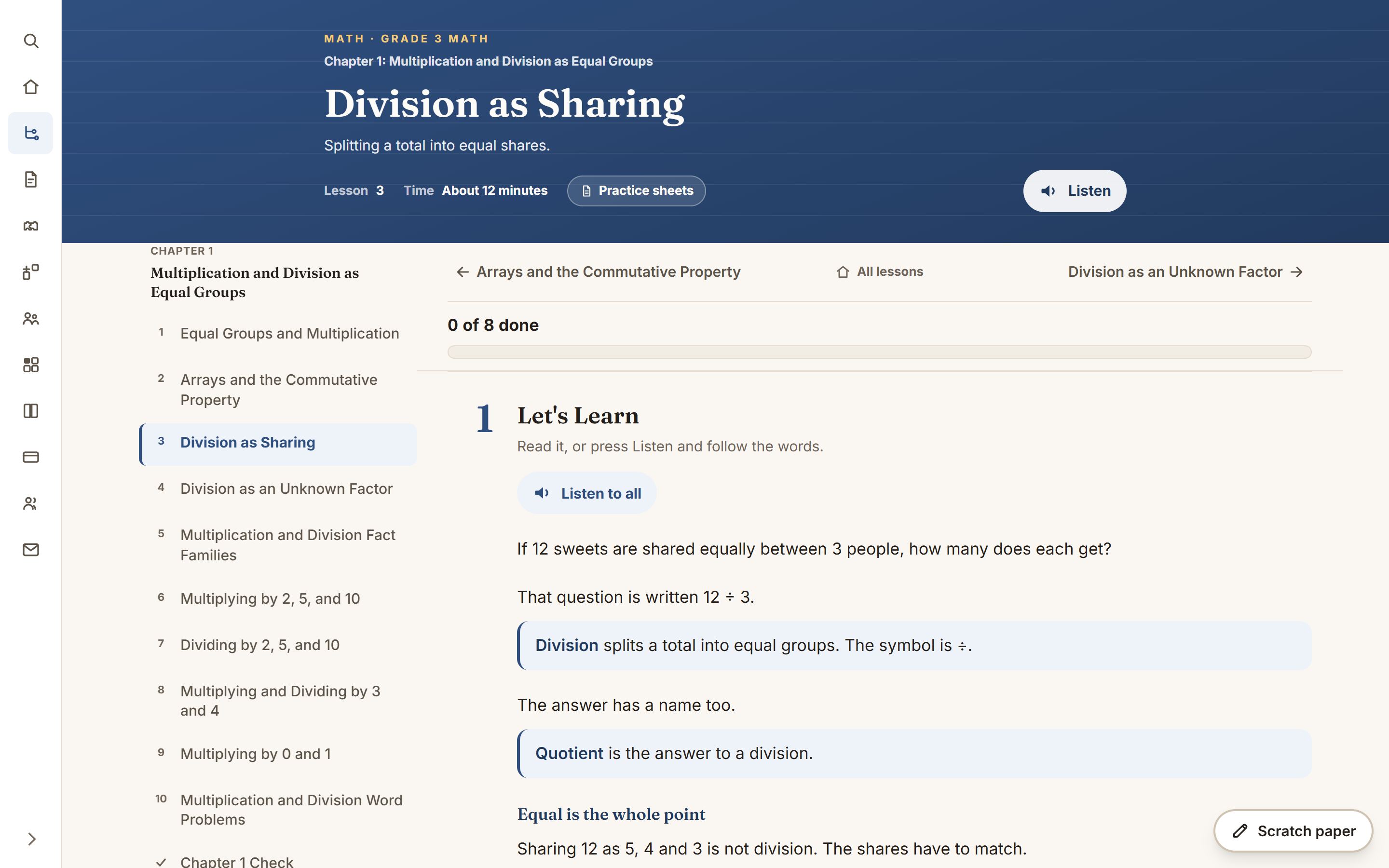
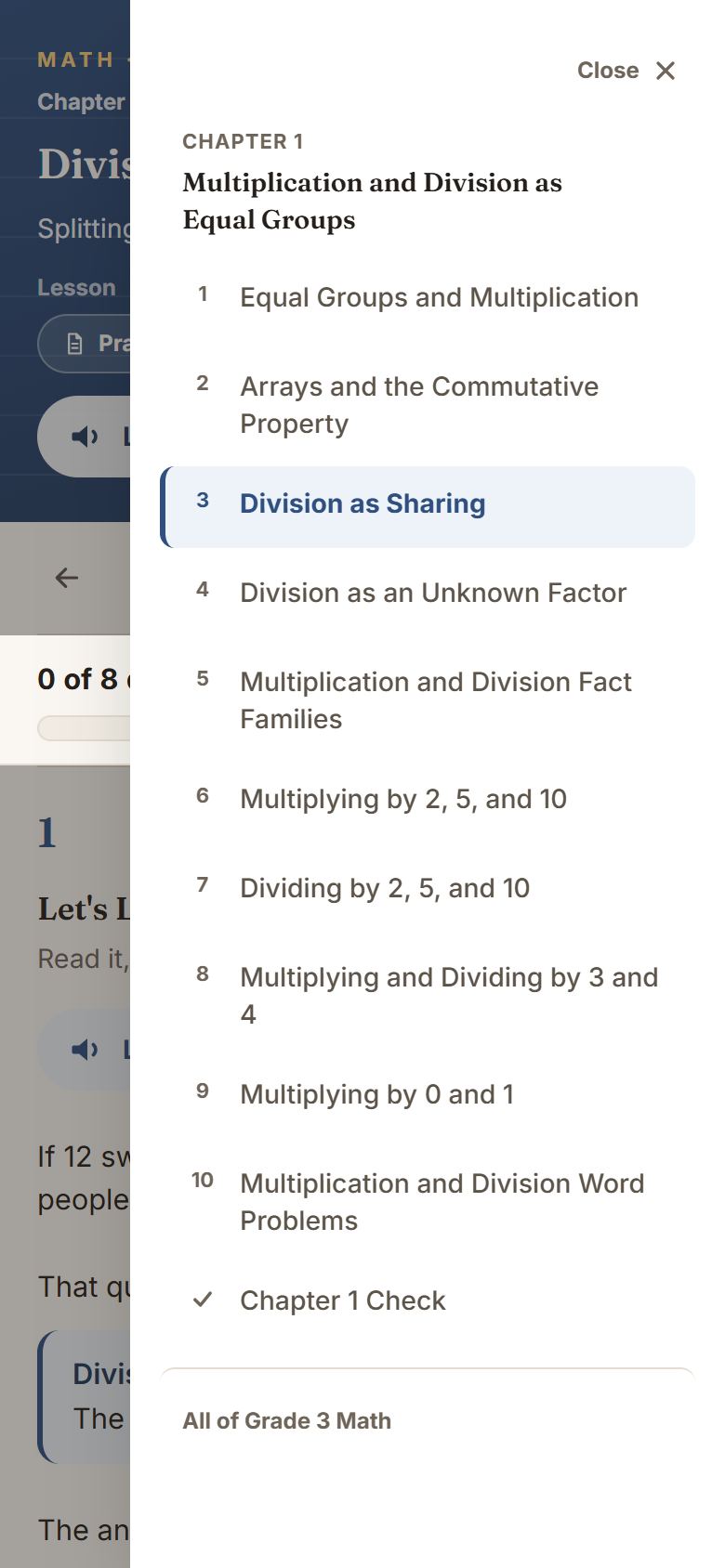
On a phone or tablet there is no room for the column, so it is a button in the bottom right-hand corner instead. It says which chapter you are in. Tap it and the chapter’s lessons slide in over the page.
Ask about this lesson
Near the bottom, once you are signed in, is a box headed Stuck? Ask about this lesson. It is for you, not for your child. See Asking about a lesson.
Moving on
When every question is done, a banner says You finished the lesson!, with a button to the next lesson and Do it again. At the very bottom are the previous and next lessons, or the chapter check when the chapter is over, and links back to the chapter and to all courses. Cogito remembers which lessons are finished, so you can come back tomorrow and carry on. Start this lesson over clears this lesson only.
Science lessons are picture books
Every science lesson, Kindergarten to Honors Physics, is a book: a heading, a big drawing and a line or two of large text on each page. Each page has its own speaker button that reads it aloud. The book is read top to bottom, in this order.
- Page one shows something that happens, and asks one question. Your child taps a guess. Nothing after it opens until they do. Until then, a box says Make your guess to turn the page and lists what is still to come. Any guess is fine: the book is about to show the answer.
- The pages show what happens, a step at a time, and name the idea only after it has been seen. The common wrong idea comes back near the end, once your child has seen it fail.
- Words to Know, then What We Learned.
- Check What You Know: a few questions, each marked Question 1 of 5 and so on. A right answer says why. Another answer gets “Not quite”, a pointer, and another try.
- From Grade 3, Explain It in Writing: a claim, the evidence for it, and the reasoning, each in its own box. The speaker reads the question, the evidence to choose from and the sentence starters. A model answer can be opened after writing, not before.
- Ask and Wonder: questions to talk over with a grown-up, with no wrong answer. At high school this is Open Questions.
Pip, the science buddy, is on every book, Kindergarten to Honors. It sets the puzzle and waits for the guess, reacts to the pick without marking it, then explains each page in its own words, scrolling the book to the page it is talking about.
Chemistry lessons go further. After the guess comes Watch the Film, a narrated film of about two and a half minutes that teaches the idea. After What We Learned, Pip works three problems on a green chalkboard, step by step, each harder than the last.
High-school books have one Lab partway through: your child predicts what will happen, runs a simulation, then explains what they saw. Some high-school questions ask for a number.
The This lesson list works here too. Before the guess, the pages show as Page 2, Page 3 and so on, marked After your guess, because a page’s heading could give the answer away. After the guess, each page is listed by its heading. The lesson is finished when the guess, the lab, the questions and the writing are done.
Life Skills lessons
A Life Skills lesson starts with a situation and a choice, and most choices have no single right answer. Each step has a speaker: the situation, the choices, what happened, the question about whether your child would choose the same again, what it was about, and the Life Mission to try away from the screen.
Reading lessons
Reading lessons are picture books too, built around a story read a page at a time. They have a chapter of their own: Reading lessons.
When a lesson is locked
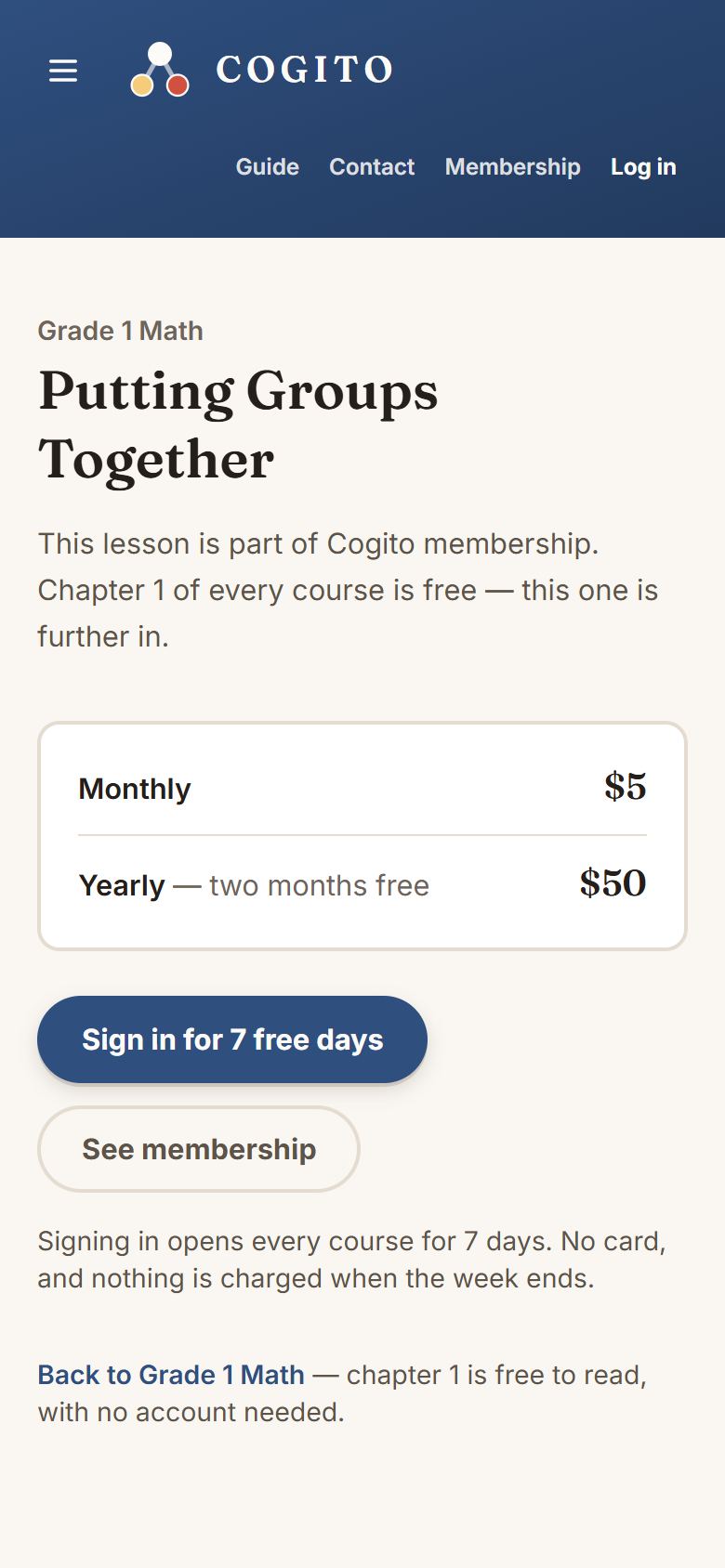
Chapter 1 of every course is open to everybody. A later chapter opens when a grown-up signs in, free until December 31, 2026. Signed out, a later lesson shows this screen instead, with Ask a grown-up to sign in. Chapter 1 is open now. and a Sign in — it is free button. Nothing is broken.
The membership chapter explains what is free and what is not.